Interaction Design/By Erfan Soleymanzadeh//6 min read
What is spatial UX? Designing interfaces for spatial computing
Spatial UX is the design of interfaces that live in the 3D space around a user. How it differs from 2D UX, and the principles that keep it comfortable.
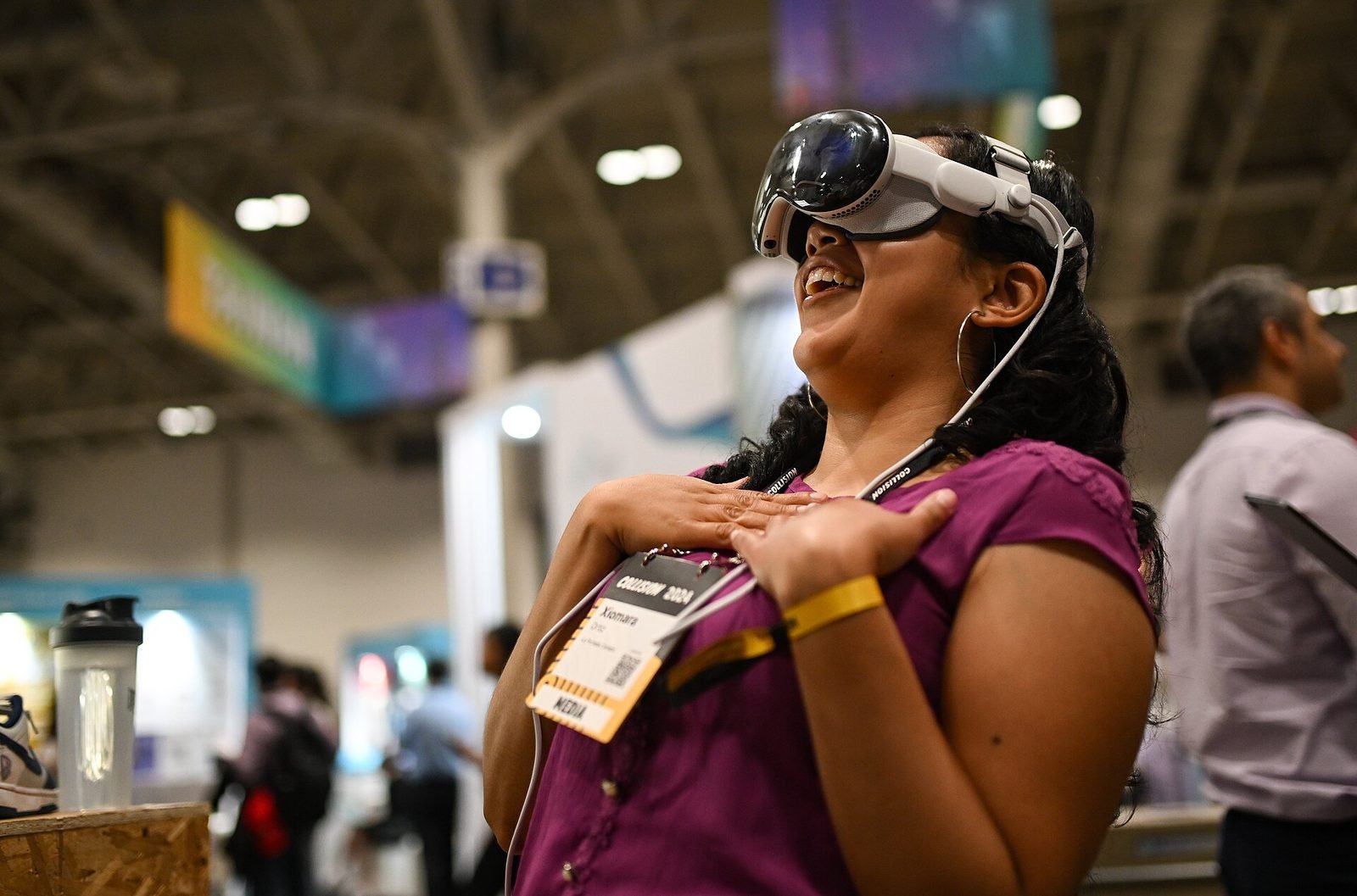
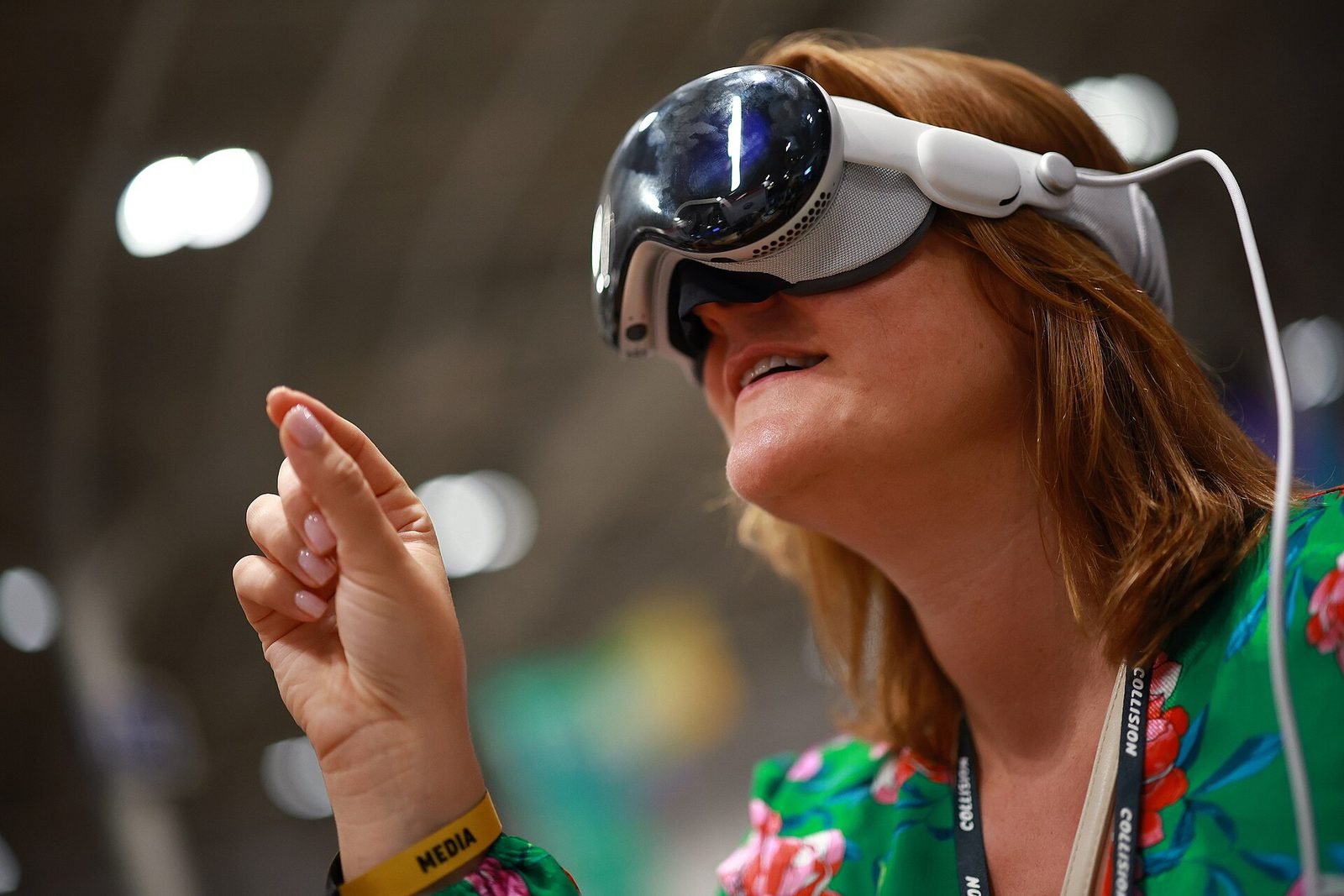
Spatial UX is the practice of designing user interfaces that exist in three-dimensional space around a person rather than on a flat screen. On a headset such as Apple Vision Pro or Meta Quest 3, or in phone-based AR, interface elements have a position, a distance and an orientation relative to the body, the room and other objects. The user reaches, looks, turns and walks instead of scrolling and clicking, so the designer must weigh ergonomics, depth perception and physical comfort as carefully as information hierarchy.
It is still user experience design: the goals, research methods and the discipline of testing with real people are the same. What changes is the medium: a 2D interface is a rectangle you look at; a spatial interface is a place you are in. This article sets out what that difference means in practice and ends with the checklist we use at VeleStudio when reviewing spatial interfaces.
How spatial UX differs from 2D UX
Depth is a design variable
In 2D, everything sits at the same distance. In spatial computing the distance of a panel changes its apparent size, the effort needed to focus on it and how it relates to the real objects behind it. Content closer than roughly half a metre tires the eyes because they must converge strongly; content many metres away becomes hard to read unless it is large. Most comfortable panels sit between one and two and a half metres from the viewer, and depth changes between neighbouring elements should be small and deliberate.
Field of view and comfort zones
A headset shows a window of the world narrower than human vision, and turning the head to find content is work. The region a seated person can see with small eye and head movements is a cone roughly thirty degrees either side of straight ahead, slightly less above and below. Primary controls belong inside that cone; secondary content can live outside it if something hints where it is.
Ergonomics: the body is part of the interface
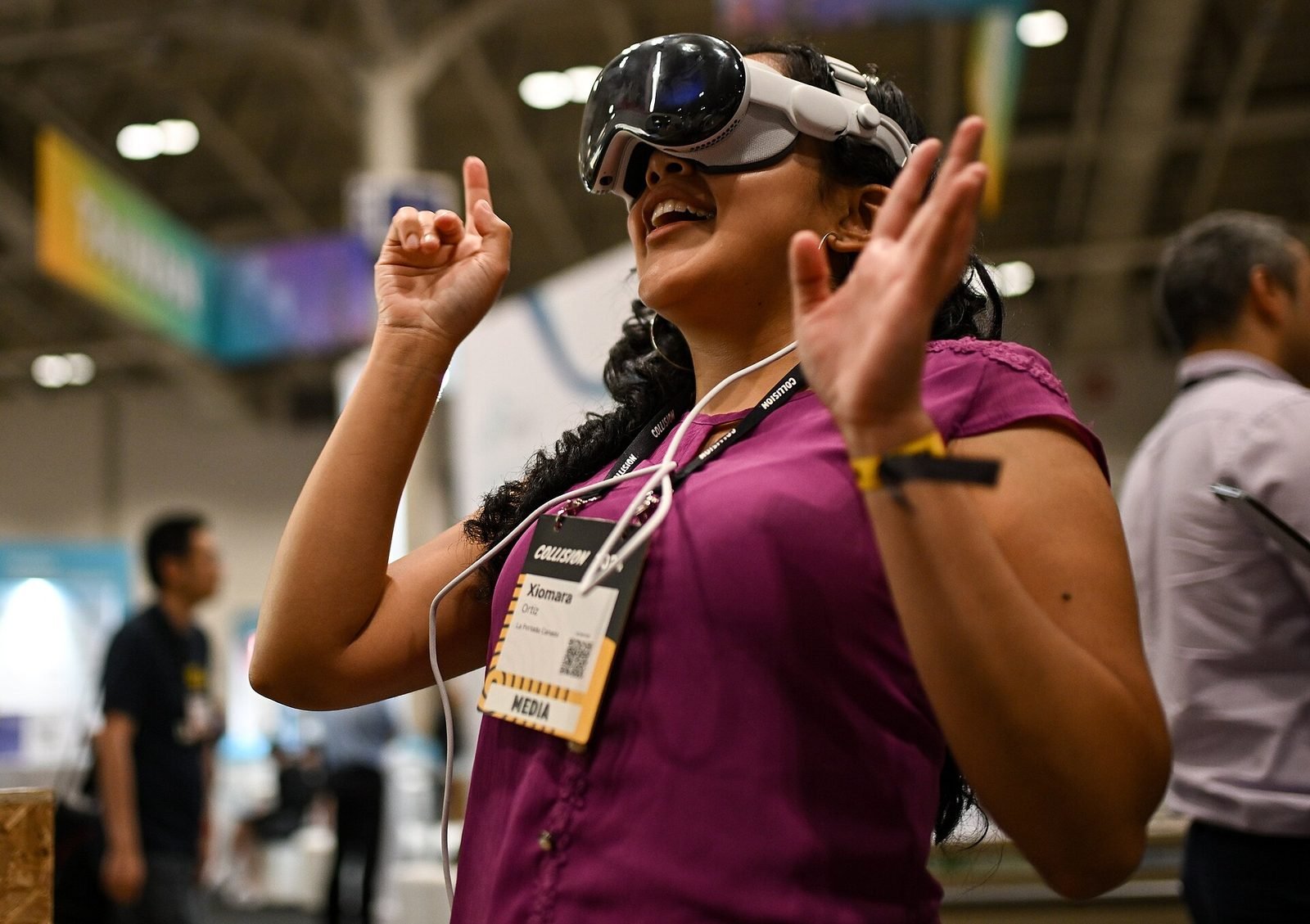
Reaching forward for a few seconds is fine; holding an arm out for a minute is not. Large or repeated arm movements cause fatigue quickly, which is why current platforms favour small hand gestures near the lap. Seated or standing use, the user's height and whether they move through the space all change where content should appear. Spatial UX treats posture and fatigue as first-class constraints.
Input modalities and what each is good for
No single input suits every task; most spatial products combine several.
| Input | Good for | Weak at |
|---|---|---|
| Gaze and pinch | Fast, low-effort selection; reading-driven interfaces | Precise dragging; targets smaller than about one degree of view |
| Direct hand interaction | Manipulating objects within reach, playful or physical tasks | Anything at a distance; long sessions; fine text entry |
| Controllers | Precision, haptics, long gaming or training sessions | Natural feel; learning curve for first-time users |
| Voice | Commands, search, dictation, hands-busy situations | Noisy public spaces; privacy; discoverability of commands |
| Phone or tablet touch | Mobile AR, shared viewing, familiar gestures | Two-handed tasks; holding the device for long periods |
Gaze and pinch, the default on visionOS, changes the interface more than it appears to. People look where they are about to act, so hover fires just by looking and selection is a small movement of the fingers. Targets need to be larger than mouse targets; Apple's visionOS guidelines suggest a minimum of about sixty points with clear spacing. Direct hand interaction gives the strongest sense of presence within reach, but it is less accurate than people expect and tires the arm. Voice is powerful combined with spatial context, for example asking about the object you are looking at, the premise of our self-initiated spatial conversational guide prototype.
Anchoring: world, body or head
Every spatial element needs an answer to what it is attached to.
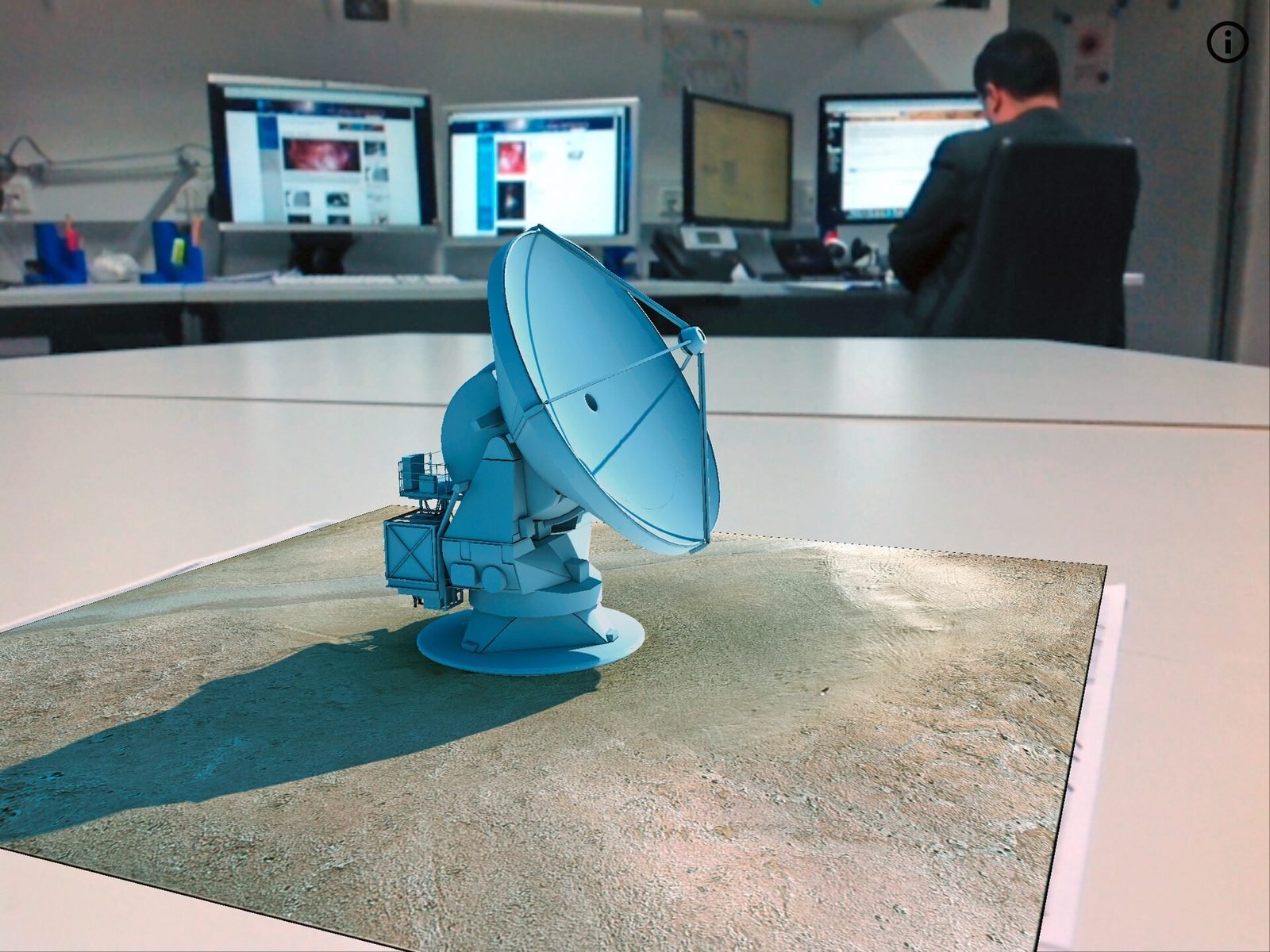
- World-locked content stays fixed to a point in the room or on an object. It is right for anything that refers to the physical world: a label on a machine, a reconstruction of a wall, a virtual screen on a desk.
- Body-locked content follows the person as they move but does not turn with the head: a toolbar that waits at waist height, or a companion that walks beside you. It suits persistent controls where people move around.
- Head-locked content moves with the gaze, like a heads-up display. It is the most intrusive and should be reserved for brief, small notifications; permanent head-locked panels feel like something stuck to your glasses.
A good rule is to default to world-locked, let the user reposition anything, and bring in body-locked elements only when a control must stay available while walking.
Legibility, feedback and affordances
Text in 3D
Text is the hardest thing to get right in a headset. Resolution per degree of view is lower than on a laptop screen, so small type blurs and thin strokes shimmer. In practice this means larger type than instinct suggests, generous line spacing, high contrast against a controlled background and short lines. Panels should face the viewer, turning gently toward the person rather than snapping. Text should never sit directly on a busy real-world background without a backing surface, and long passages are better delivered as audio or as a sequence of short panels.
Feedback and affordances
In 2D, decades of convention tell people what is clickable. In space those conventions are still forming, so the interface has to explain itself. Elements that can be touched should look physical, cast a hint of depth and respond to the approach of a hand, not just to contact. Hover and press states need to be visible from a distance. Audio matters more than on screens because it confirms actions without moving the eyes, and spatial audio can direct attention to content outside the field of view. Late feedback is felt as the object being broken rather than slow; aim for a response within a single frame.
Accessibility
Spatial computing can exclude people in new ways: those who cannot stand, cannot raise their arms, see with one eye, have tremors or are sensitive to motion. Good spatial UX offers seated and standing modes, an alternative to hand gestures (gaze, controller or voice), captions for spoken content, adjustable text scale and a way to bring content closer rather than making the user walk. Never move the virtual camera independently of the head; it is the most reliable cause of nausea. Platform accessibility features, such as Dwell Control on visionOS, should be supported rather than overridden.
A spatial UX checklist
- Primary content sits within the central viewing cone and between one and two and a half metres away.
- Nothing requires sustained arm elevation or looking up for long.
- Every element has a deliberate anchoring type, and users can reposition panels.
- Head-locked content is limited to brief notifications.
- Type is large, high-contrast and backed by a surface; line length is short.
- Targets are large enough for gaze and pinch, with spacing to prevent misfires.
- Interactive elements respond to approach, hover and press, with sound where helpful.
- The experience works seated and with at least one alternative input.
- The virtual camera never moves without the user's head moving.
- The interface was tested on the real device with first-time users.
How VeleStudio approaches spatial UX
At VeleStudio we treat spatial UX as a branch of interaction design and human-computer interaction rather than a styling exercise, prototyping early on the target device and testing with people outside the team as soon as there is something to wear. For the underlying technology see what is spatial computing, and if you are designing an interface for a headset or phone-based AR, talk to us.
FAQ
Common questions
01Is spatial UX different from UX design?
02How far away should UI be placed in a headset?
03What is the difference between world-locked and head-locked content?
Related work
01AI, XR·Studio prototype, 2026
Spatial Guide: an AI agent that answers questions about what you are looking at
A headset prototype where a visitor looks at an object, asks a question by voice and gets an answer grounded only in a curated knowledge base, pinned to the object.
- Unity
- C#
- OpenXR
- Meta Quest SDK
Keep reading
How to design an AR experience
A practical process for designing AR: define the job of the AR layer, choose anchoring, guide attention, handle uncertainty and test in real conditions.
What is Human-Computer Interaction (HCI)?
Human-Computer Interaction is the study and design of how people use computing systems. What it covers, how it differs from UX, and why it matters for XR.
What is spatial computing?
Spatial computing is computing that senses, maps and uses the physical space around a device, so digital content and interaction happen in place.